Click anything on your Mac from the keyboard
A free, open-source alternative to Vimac and Homerow, built to be the better choice: nothing to pay, labels on every display at once, no telemetry. Press a shortcut, then type a label to click a button or link. You can even label text in an image or pick a window in Mission Control.
Requires macOS 14 or later. Apple silicon and Intel.
It also reads what apps do not expose
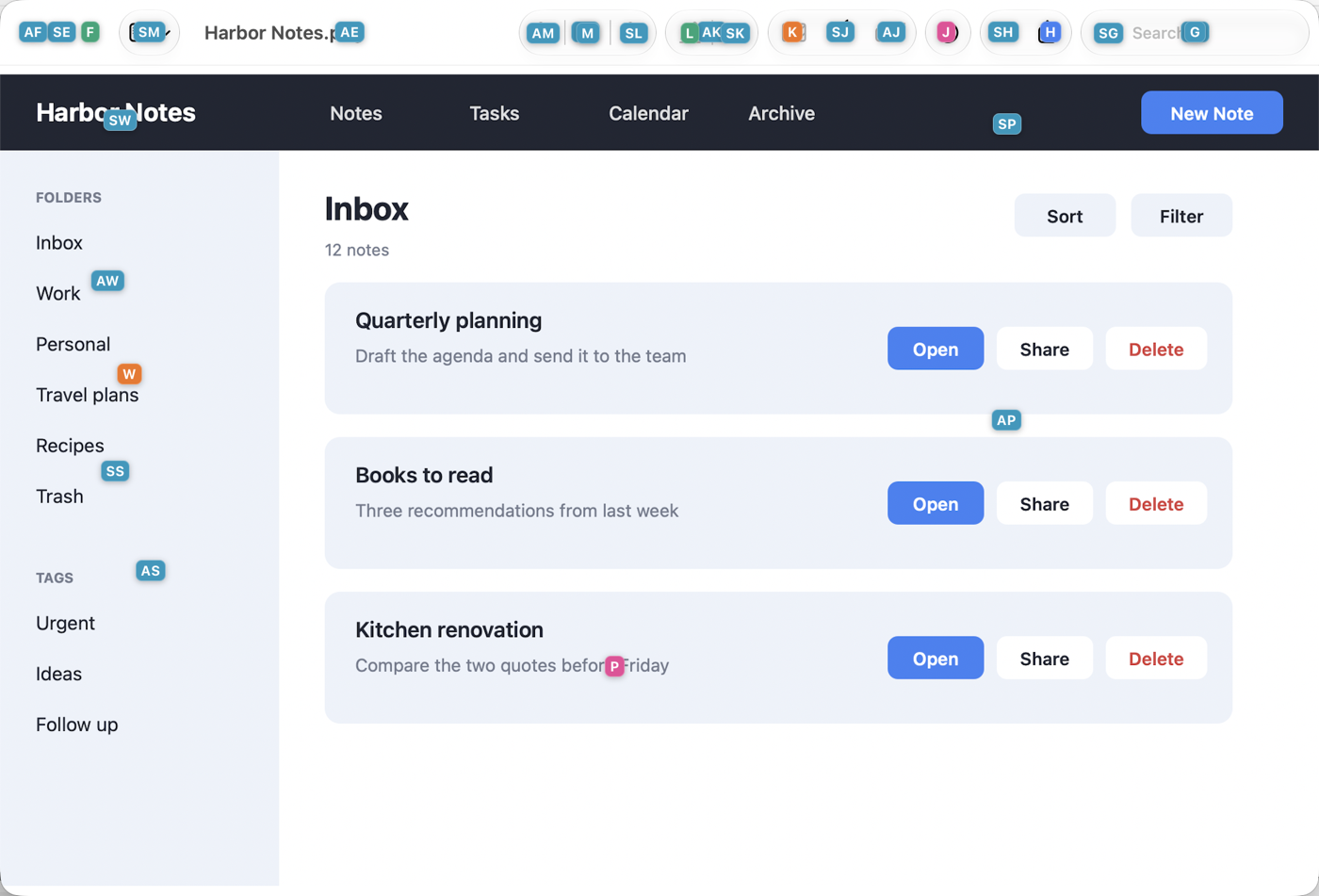
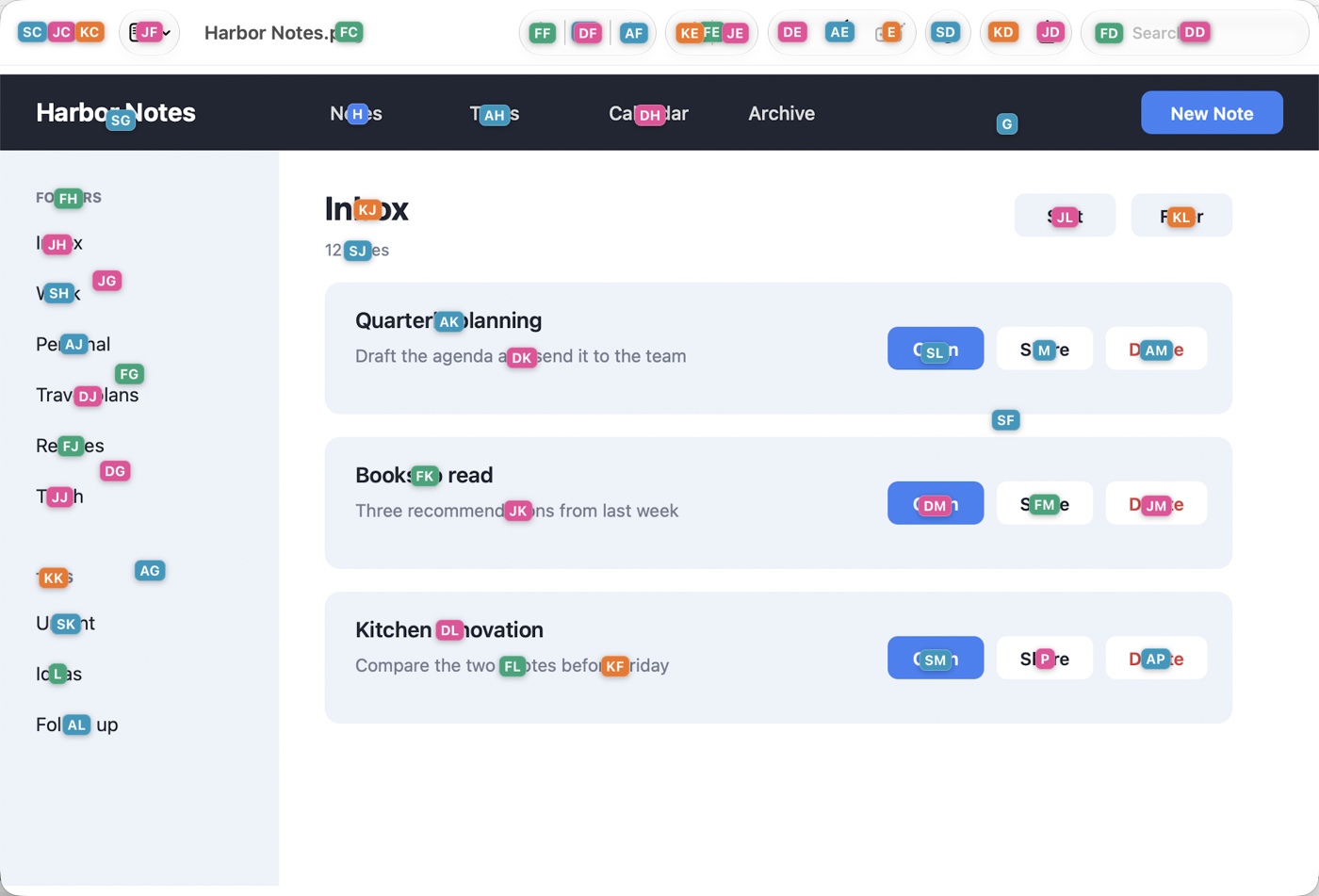
Some windows tell the system nothing about their contents: canvas-drawn interfaces, games, remote desktops. Keyfari reads the pixels on your Mac and labels the text it finds. Here the window is a picture of a made-up app.
Three modes, three shortcuts
All of them can be changed in the settings.
Hints
Labels on everything clickable. Hold Shift on the last letter for a right click, Command for a double click.
Search
Type part of an element's text, then Return. Chinese text matches its pinyin, in full or as initials.
Scroll
H J K L to scroll, D and U for half a page, G G for the top. Tab switches between scroll areas.
Made to stay out of the way
Keyfari lives in the menu bar and does nothing until you call it.
- Works with any input method. Keys are read by position, so a Chinese or Japanese input method does not get in the way.
- Does not steal focus. Open menus and popovers stay open and get labels too.
- Private. No telemetry. The only network requests are for updates, which can be switched off. Text detection runs on the device.
- Stable labels. An element keeps the label you last clicked it with, or one you choose yourself.
- The whole screen. Labels on every visible window on every display, the menu bar, notifications and the Dock.
- More than clicks. Drag from one label to another, or repeat your last click with one shortcut.
- Mission Control. Its windows and desktops get labels too, on every display. Type one to go there.
- Desktops. Optional shortcuts take you one desktop to the left or right.
- See what it saved you. Clicks, streaks, most used apps and the time saved, counted on your Mac only.
- Keeps itself up to date. It shows what is new, then downloads and installs the update, checked against the project's signature.
- Yours to shape. Shortcuts, label letters, themes, scroll speed, ignored apps.
- Three languages. English, Chinese and Japanese.
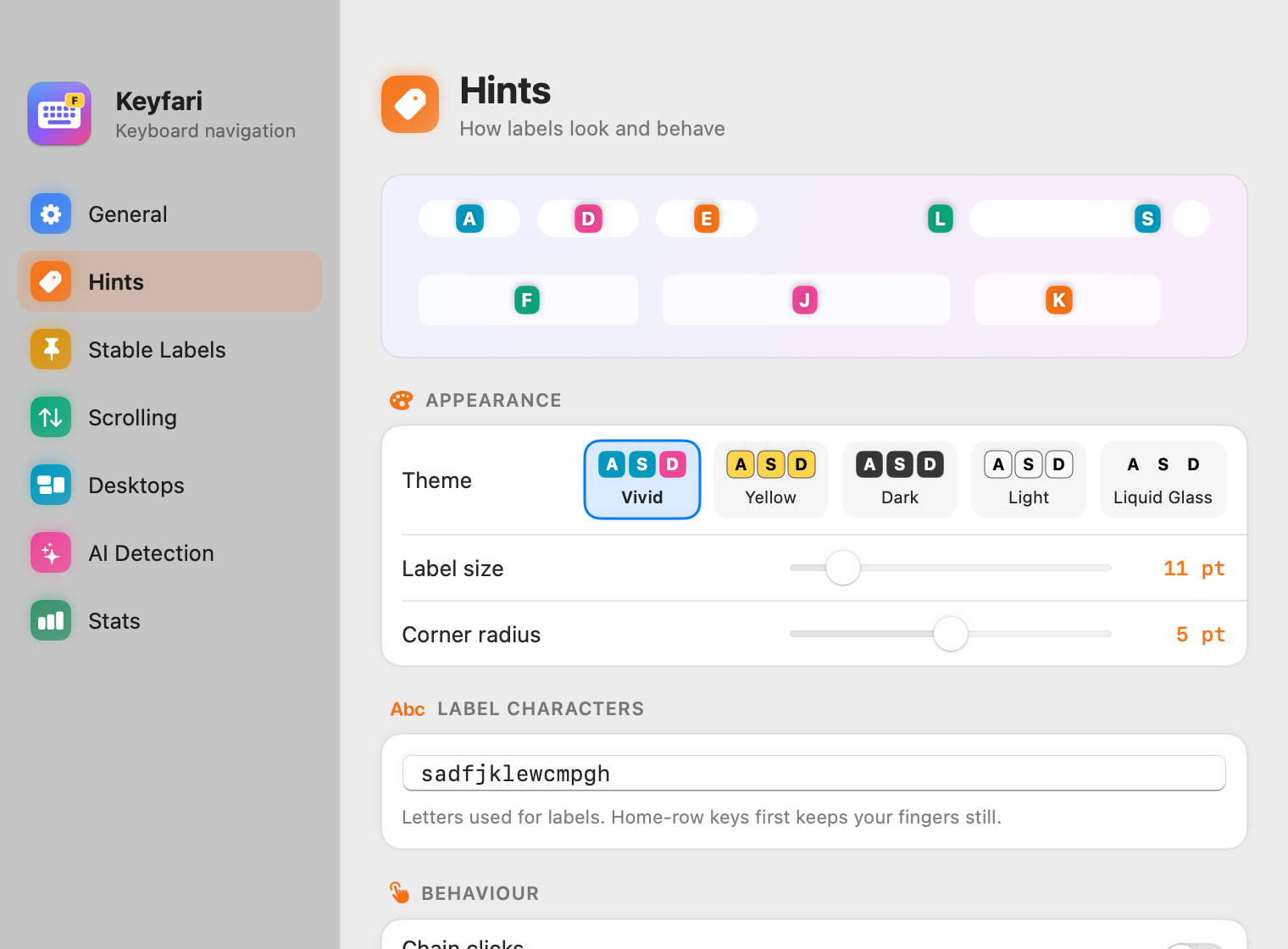
A settings window worth opening
Change a theme or a size and the preview shows the result at once.
Install
Keyfari is not signed with an Apple Developer ID, so macOS blocks it the first time you open it.
Download
- Get the latest disk image and drag Keyfari to Applications.
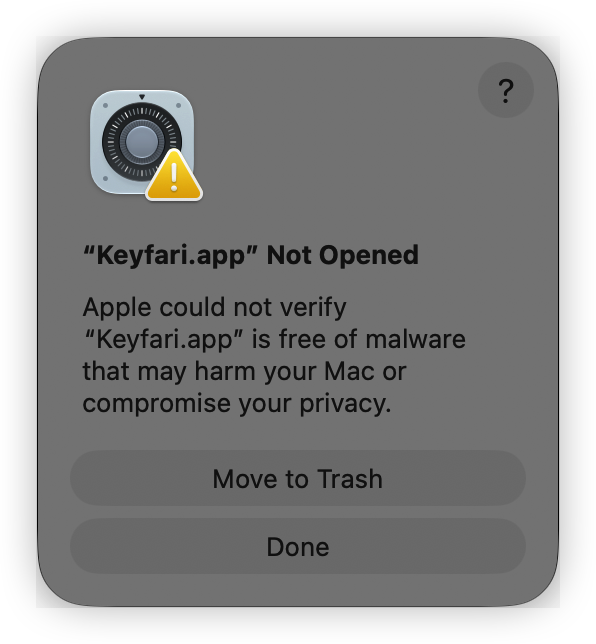
- Open it once. macOS will refuse.
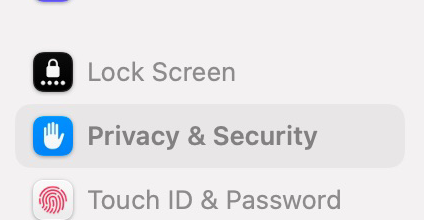
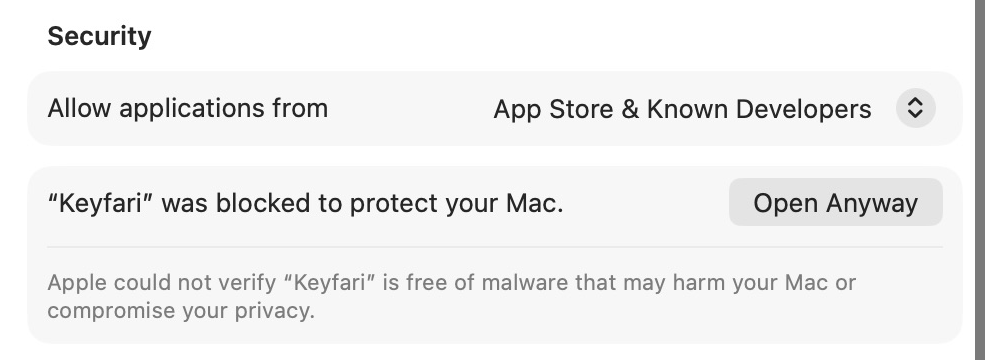
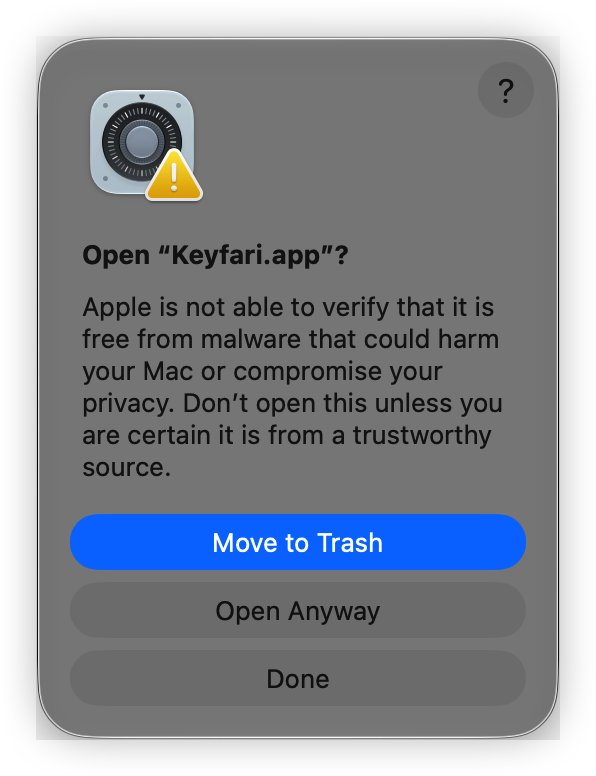
- Go to System Settings > Privacy & Security and choose Open Anyway.
- Grant the Accessibility permission when asked.
Homebrew
brew install --cask hodgekou/keyfari/keyfariThe same first-launch step applies.
Opening Keyfari for the first time
The first time you open Keyfari, macOS stops it and says that Apple could not verify it. This is expected. Apple charges developers a yearly fee to have their apps verified, and I have not paid it: Keyfari is free, and I would rather keep it that way. The warning says that Apple has not checked the app, not that anything was found in it.
Keyfari is open source, so what it does is there for anyone to read, and it is safe to use. If you would rather not trust a download, you can build it from the source yourself.